Get started
By the end of this guide you will have scanned a draft and rewritten it.
What you need
- A Windows computer.
- To rewrite: your PlainSpeak licence key or purchase code, and a key from an AI provider. Scanning needs neither.
Step 1: Install PlainSpeak
- Go to the PlainSpeak downloads page and download the installer, the file ending in
.exe, from the newest release. - Open the file you downloaded.
- If Windows shows Windows protected your PC, select More info. Check that the publisher is The KAM Coach Ltd, then select Run anyway.
- Follow the installer. You can keep the folder it suggests. When it finishes, open PlainSpeak from the Start menu.
Step 2: Scan a draft
Scanning is free and needs no key.
- Paste your draft into the Bring your text panel on the left. To try it with an example first, select Load AI-slop sample.
- Read the AI scan panel on the right. It updates as you type.
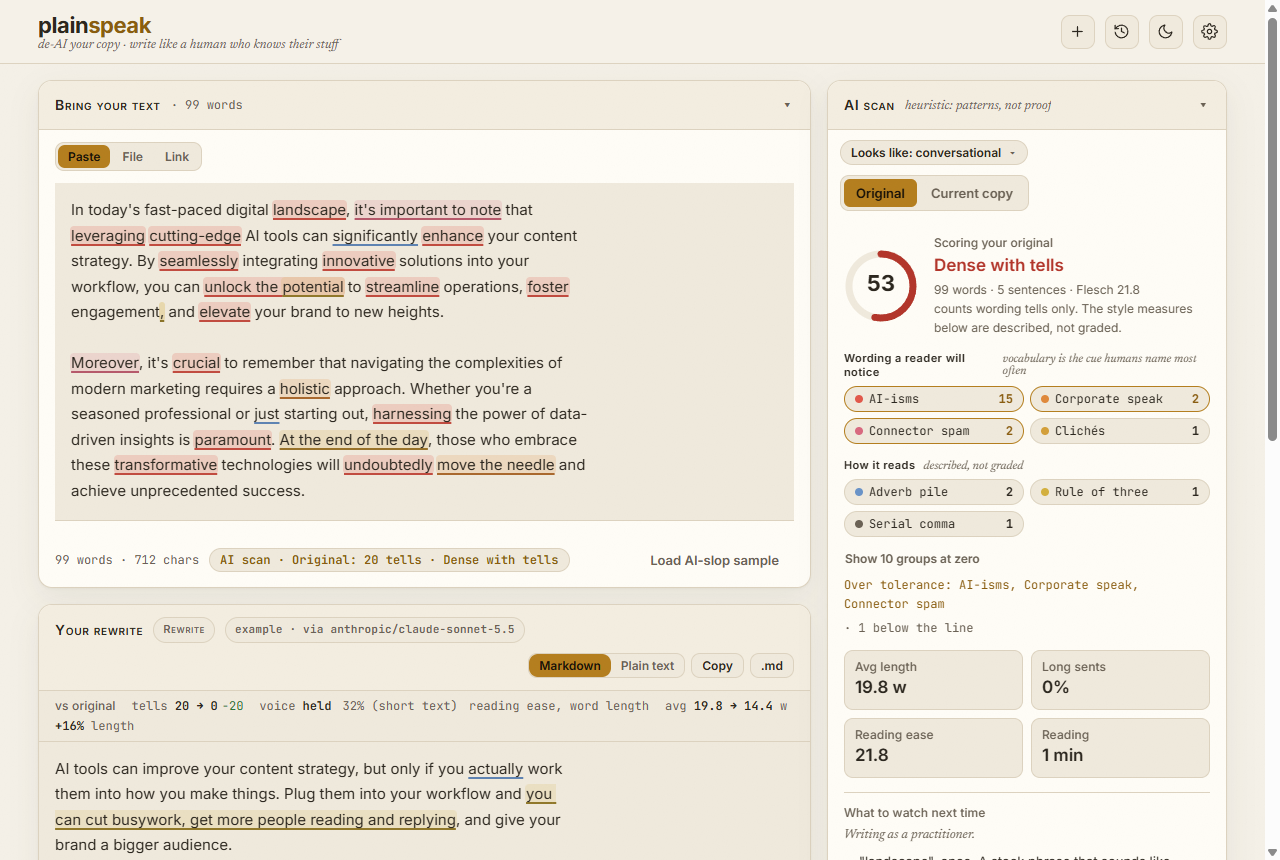
Each tell is highlighted in your text. The score at the top of the scan panel counts the wording a reader is likely to notice: 100 means none was found.
Step 3: Add your licence
You need a licence to rewrite. Your licence key is on the key page you reached after buying. The purchase code is in your Polar receipt email. Either one works.
- Select the Settings button, the gear at the top right.
- On the Account tab, paste your key or purchase code into Licence key.
- Select Save key.
The licence section then shows your licence number and which versions it covers.
Step 4: Add your AI key
PlainSpeak sends your text to an AI provider, using your own key. We recommend OpenRouter, because it gives you every model in one place and it is the only provider the audit and Find sources work with.
- Create a key at openrouter.ai/keys. Give it a spending limit, so a key that leaks cannot cost you more than you chose.
- In PlainSpeak's Settings, on the Account tab, choose OpenRouter (recommended) in Provider.
- Paste your key into API key.
- Select Save.
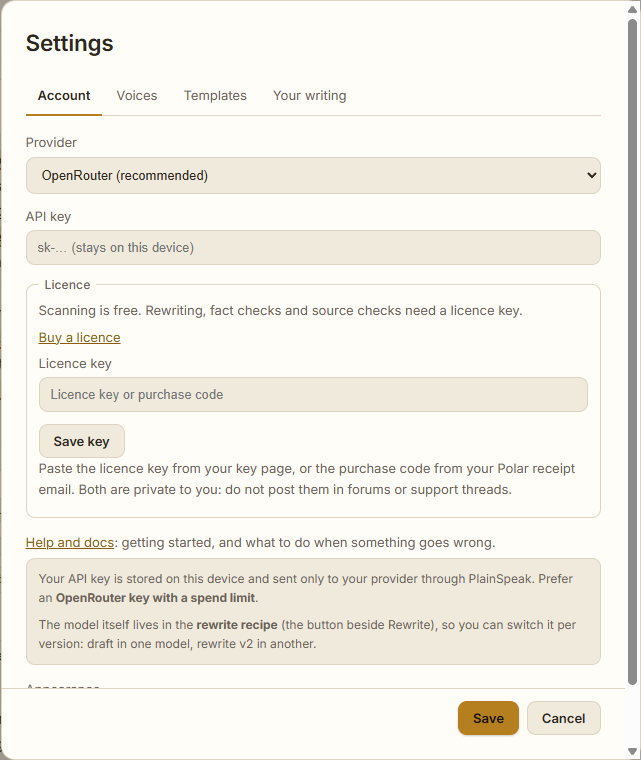
Your key is stored on your computer and sent only to your provider.
Step 5: Rewrite
- Select the recipe button beside Rewrite. Choose a Mode: Polish for a light pass, Rewrite for a full rewrite, or Recompose to build a new post from the same material. Choose a Voice, then select Done.
- Select Rewrite, or press
Ctrl+Enter.
The rewrite appears in the Your rewrite panel. The scan panel switches to Current copy, so you can compare it with your Original.
You are set up
- Find your way around: what each part of the window does.
- Troubleshooting and FAQ: if a rewrite does not land, or something else goes wrong.